Showing posts sorted by relevance for query ISTE. Sort by date Show all posts

Monday, June 10, 2019

First Time at ISTE

Two exciting things for teachers are evident on social media right now: gearing down for the end of the school year and gearing up for ISTE at the end of June. Lots of posts are emerging announcing when people are speaking, emails are coming from edtech companies, and people who won't be there are already experiencing FOMO even though ISTE is still two weeks away. Last year was my first time at ISTE, so I am posting my tips to make it a great experience.

Getting to ISTE

 If going to ISTE is high on your wishlist, but low on your employer's list, there are ways to get there that won't break the bank. My biggest surprise about getting there was how much the actual conference costs. By the time I paid the registration (and mandatory membership fee), I needed to cut corners in other areas:

1. Look for grant support. I attended last year by writing a Hach Professional Development grant and it covered all of my expenses.If you really want to do it, funding is out there. You just have to go after it.

2. Public transportation and AirBnB. I used both last year. Staying in downtown Chicago was cost-prohibitive for me, so I stayed about 20 minutes by train away from the conference center in a rented room in someone's home. For $50 per night and the cost of my train ticket, I saved a bundle. I loved the neighborhood where I stayed and enjoyed getting out of the conference fray at the end of the day. 

Being at ISTE

The biggest surprise I had about ISTE was the constant standing in lines. Lines everywhere you look. Food? Bathrooms? Sessions? For all of these things, you have to stand in lines.

 1. Take a backpack. Seriously. Do not rely on a tote bag, especially if you will go to the conference early in the morning and never leave until the evening. I found a great, reasonably priced backpack with a laptop sleeve at Walmart and it was the best purchase I made last summer! Pack a water bottle and some snacks when you leave in the morning. Take your tech and not much else.

2. Dress in layers. It's hot outside. It's cold inside. Or it's not. Have a hoodie or sweater you can put on and take off as you need to. Again, if you head to the conference early and leave late, the hoodie will come in handy. 

3. You need walking shoes. Sure, you can wear strappy sandals or fancy pumps, but you'll be more mobile if your feet don't quit halfway through the day. 

4. Only stand in line for sure things. I am an Apple enthusiast and they put on a great show at ISTE. If you love Apple products, you can't lose with any of the sessions they have. People will start lining up by the Apple booth around 6 AM every morning to get tickets to Apple sessions. It's worth it. Look at the schedule and choose your session. Stand in line for tickets. Once you get your tickets, get back in line to see if you can get tickets for another session. Tickets for all sessions for the day will be gone by early in the morning. Again, every session I attended was awesome. This is one line I endorse waiting in.

5. People will line up for regular sessions sometimes as much as 60-90 minutes in advance. If you have your heart set on seeing something (or someone) in particular, get in line early because once a room is filled, people are turned away. 

Now, remember, that these presenters are regular people like you and me. They probably blog and post resources to social media. They might even present at your home state edtech conference. Think carefully about how long you want to take your chances in a line before you commit. I got frustrated with the lines, so 

6. Spend lots of time in the Exhibit Hall. Many of the big vendors set up stages and demo products or tools constantly. I eventually gave up on waiting in lines and just walked around the Hall. It's overwhelming at first, but I attended some excellent sessions at booths by the people who make the tools (or demo the tools for a living). I learned a lot in there. And practically never had to wait in line.

You can read more about my experience at ISTE last year here. If you are not attending this year, it's easy and fun to follow along with the #NOTATISTE crowd. I've done this many years and it's all the fun of a conference (door prizes!) with none of the expense.
 
I won't be at ISTE this year. To be perfectly honest, I wouldn't want to go every year anyway, but this year I'll be at an AP Summer Institute for Chemistry. It's probably time now to go looking for posts about attending one of those for the first time!

Tuesday, June 19, 2018

It's ISTE Time!

Next week at this time, the annual ISTE Conference will be winding down, but this week everyone is gearing up for a BIG five days of educational technology.

Last year I wrote this post about the Google + Community #NOTATISTE. At almost 2200 members, it's not as big as the conference that will take place in Chicago next week, but in many ways, that's better. The people who participate are very interested in sharing with and learning from each other. If you will not be at ISTE, I highly recommend this community. I have participated in the community for the last two years - lots of the fun of a conference without the expense! Currently people are introducing themselves and making badges to post to the community. There are daily challenges that people can answer via Flipgrid (or just by posting comments) and a very impressive wheel of door prizes.

I am headed to ISTE this year. I am going to attempt to blog from my sessions, so hopefully I will post next Monday, Tuesday, and Wednesday. I'm planning to focus on coding and am really looking forward to a session on Micro:bit. I'll be bringing one home (Thanks Microsoft, Micro:bit, and Fair Chance Learning for that!), so I'll be able to practice what I learn there.

What are you doing to get ready for ISTE or NOTATISTE? Maybe we'll connect at the conference or the community!

Saturday, June 30, 2018

Let's be Fab@School (ISTE Gem #1)

Over the next several days, I'll be blogging about the things I saw at ISTE that I cannot wait to try in my classroom. The first of my ISTE gems is the Fab@School Maker Studio by FableVision Studios.

When I saw the title of this session ("Paper Prototyping Bootcamp") and the presenter (Paul Reynolds of FableVision), I made it a priority to attend. In fact, I was the fifth person into the room for the session! I have been a papercrafter since I was in middle school, so anything involving paper or cardstock automatically intrigues me. The Peter Reynolds book The Dot is one of my very favorites, so combine the Reynolds brand with papercrafting and this was destined to be a fave. 

Peter and Paul Reynolds are doing really cool things at FableVision Learning, the resource for creative educators. One of those cool things is Fab@School, a very easy-to-use maker studio software that is web-based, inexpensive, and appropriate for all ages.

In the video below, I demonstrate in two minutes how easy it is to model a cube that can be printed and cut out.


There are so many more options than what I demonstrated in that two minute video. There are simple things like copy and paste and rotate. You can add a graph paper background if you need one. You can free draw with a line tool. You can add text. You can hook many shapes together and then "weld" them into one big shape. You can also "unweld" shapes into component parts (including shapes from the Fab@School ready-made projects). And so much more.

When you have a project just the way you like it, you can print, cut and fold it. Or, and this is the part I really love, you can send your page to a Silhouette die-cutting machine ($150 on amazon.com today) and it will cut on the cut lines and perforate the fold lines. How awesome is that! Kids are using Fab@School in combination with Silhouette cutting machines to prototype everything from simple 2D masks to complicated, scaled models of their schools. Fab@School has a library of projects, lesson plans, and tutorials.

My sister got the Reynolds brothers to sign a book for me
at the NSBA conference. It's a treasure!
A single license for Fab@School costs $25, so for $175 plus the cost of some cardstock, you could have unlimited fun with paper! Where many typical Maker Space tools could cost thousands, these tools offer a low cost option for some seriously creative fun. Plus, if you are working with an economically disadvantaged population, ask for a discount on licenses. I bet you'll get it.

I'm hoping to incorporate a project this year where students design components of a chemical "scene" with Fab@School. Then we'll print them out and automate them with a coding or robotic component of some kind. Stay tuned. It's going to be awesome.

Monday, July 2, 2018

Photo Editing with Aviary (ISTE Gem #3)

When I became aggravated with the lines at ISTE (and getting closed out of sessions), I began to dedicate more time to the Vendor Expo. Lots of booths have small demo areas set up for sessions to take place right in the Expo. It was at the Adobe booth that I saw Leslie Fisher present on several Adobe tools, including the mobile app Aviary.

Aviary is a mobile photo editing app (iOS and Android) that Leslie described as an underused tool. Indeed, I had not heard of it, so I quickly downloaded it (it's free!) and began to follow along. Import a picture from your camera roll or take one within the app and then start editing. There are SO many ways to edit - enhance, add effects, crop, adjust, change the orientation, transform the image, add text, draw on the image, change the focus, add vignettes or stickers or frames or overlays, touch up blemishes and red eyes and whiten teeth, add a color splash, and create a meme.

I added a variety of effects to a photo I took of two turkeys and made a GIF out of the images. It is inserted below so you can get an idea of just a few of the possibilities in this free tool:

It is very easy to tap an effect and fiddle with the controls. Then Apply if you like it or Cancel if you don't. I especially like the splash of color option. My daughter played with the app for about five minutes before she declared, "I love that photo app!" 

When you get the image exactly the way you want it, you can save it to your camera roll and/or share it via Instagram, Twitter, Facebook, or other apps like Messages or Mail. If you're looking for an easy, free photo editor for your mobile device, this is a great one!

Thursday, July 19, 2018

Lots of Fun with Numberella

While wandering around the expo at ISTE, I stumbled upon a board game. A board game, at a technology conference. A longtime lover of board games, I was immediately intrigued. Numberella is a game designed to increase skill level and engagement in mathematics. I watched for a while and eventually played. In just a few minutes, I was hooked.

Numberella has two basic ways to play. For players that are evenly matched, the game is pretty straightforward. Players, in turn, roll dice, choose cards, and questions or follow directions. Correct responses earn ANT coins. After a certain amount of time, the person with the most coins wins. When players are unevenly matched, other elements of strategy and luck are introduced so that players who struggle with math can still outwit and outlast others. By including "fortune cards" and "magic," the winner will not necessarily be the student with the strongest math skills. This built-in differentiation levels the playing field to help build confidence and determination. The game is available in three levels, so it provides practice for students at various levels from second grade through early high school.

Questions on the cards in the game are varied in style. Take a look at a couple of examples:


The small but mighty rule book includes teaching tips. One of the Fortune cards allows a player to hijack another player's turn. The teaching tips suggest that a teacher use this if they see a student really struggling so it can "take the heat off" the student and save the embarrassment of not knowing. The teacher can hijack the turn and explain how to solve, teaching a mini-lesson during the game. Or intervene in whatever way makes sense. I love the idea that the teacher is playing the game! Another tip is about time. Turns can be timed, but the teaching tips indicate that timed turns should only be used when players are very confident. The game also includes some DIY cards so teachers or students can create their own challenges.

When I sat down to play at ISTE, I had no idea about the educational nuances. It just looked like a fun game. Numberella was designed by Alexander Newberry and has a delightful British vibe. Lose a turn is called "Miss-a-go;" quirky characters adorn the game cards and box and create a charming backstory for the game. 

So what was this board game doing at the educational technology camp? There is an app that accompanies it. With the app, teachers can track student progress, create leagues and houses (because British!), have a leaderboard and more. In fact, Numberella has initiated a launch challenge via Twitter and the app. Teachers are competing for a chance at winning some free sets of the game and our progress is being tracked in the app. Wish me luck. I am currently in fourth place.

I already had a post in the queue for this clever game, but this was the perfect time to make it live because I am taking Numberella with me to TMathC this week. My new friends at Numberella donated the game so it could be played by amazing math teachers this week at camp. Thanks, Numberella. We are grateful!

Sunday, July 1, 2018

Computational Thinking with Polyup (ISTE Gem #2)

One of my favorite takeaways from ISTE was a new (to me) app called Polyup. Polyup calls itself a "free and open computational thinking playground. Modify expressions, functions, and algorithms to discover the beauty of math." Whatever you want to call it, it's a lot of fun!

The premise is that a machine will complete computations with numbers and operator blocks. Each time the machine must be modified to get a correct output. Watch this one minute video to see how the machine operates:

It's very fun (and a little addictive) to keep modifying the machine to achieve a particular number. The mobile app comes with a game called Number Practice that has five games per level, each level with a new number goal. Number Practice is also available on the web version of Polyup and all are free to use. There are many other ready-to-use Polyup games for grades 3-12 that you can load on a device with a scannable QR code.

One of my favorite features of Polyup, though, is the ability to create levels yourself. The GIF I created above shows all the operations your custom levels can contain. You could easily use this to help your students practice some very sophisticated math. Or, better yet, you could have your students create their own levels to demonstrate their computational thinking or help their peers practice. Again, these custom levels are shareable with QR codes like these:


A little digging around on the website shows that they count Jo Boaler among their advisors, so they are getting great advice! Whatever you call it, however you use it, I think students will be engaged by Polyup and you will love it too. 

Saturday, July 7, 2018

Coding with Micro:bit (ISTE Gem #4)

I definitely want to dig deeper into coding in the next year, so I prioritized coding activities at ISTE. To that end, I had signed up for a ticketed (but free) session called Creating with Micro:bit and it was a highlight of the conference for me.'

Micro:bit is a very small, inexpensive, programmable computer that can be used for all sorts of things. I had no experience with micro:bit before the session, but I did have some experience with coding. I lead a coding camp for kids where I use predominantly free resources available online and some other coding gadgets. Most of what I help kids with at camp is block-based coding.

Upon entering the session, each participant received a micro:bit! That was a tiny computer and a USB cable for attaching it to the device we brought with us to our session. [Note: there are iOS and Android apps for the micro:bit that use bluetooth to connect to a device so it would not require a USB connection] We were directed to a website where we could start using blocks or Java to write a program.


We started by creating a program that would run when the lights dim, so the first command was if the light is less than a certain level, the program would run. Like all block coding experiences I have had, once a basic program has been achieved, participants quickly start adding other blocks to try to accomplish other things.

We used Microsoft MakeCode to write our programs, but micro:bit can also be programmed with Python or Scratch and some others. As you can see in the above image, MakeCode looks a lot like other block coding languages and has many options (input, music, radio, loops, logic, and so much more) to explore. Even with all these options, it was so easy to get started and incredibly gratifying when it worked!

Once the program is written, you click the save button. Then open the folder where it is saved and drag it to the micro:bit (which is connected via USB) to copy it. Then the program will run on the micro:bit. I created a program that would spell out the letters of my name:


I'm still not exactly sure how I will use this in my chemistry classroom, but I am going to find a way. I am toying with an idea for a new PBL when students have to animate a chemical process using a combination of making and coding. Maybe this is a good place to start. Micro:bit does have teacher resources available on their website as well as lots of other information for getting started.

Are you using coding in your science classes? Please share your ideas.

Friday, July 27, 2018

You down with TMC? (Yeah, you know me!)

For several years, I have wanted to attend two summer conferences - ISTE and TMC. My interest in ISTE stemmed from the hurricane of posts and shares that happens every June. Surely if everyone is attending, it must be awesome. My interest in lesser known TMC came from reading Amy Gruen's awesome blog. The enthusiasm with which she has described TMC made me really want to attend. This year, because both were so close to home, I was able to experience both. While I had a good experience at both conferences, they really could not have been more different from one another. Since my most popular posts have been comparisons, here is a quick one about these two conferences:


I have never been to a conference like TMC where

  • organizers encourage attendees to list pronouns of choice on name badges
  • thank you notes are left on a table in a common area so attendees can thank someone
  • a session lasts for six hours over three days (I loved this!)
  • organizers encourage attendees to stand like pacman to encourage others to join
  • buttons are distributed to help people connect and interact
  • math is discussed as a platform to bring equity to all
  • trendy math educators sing songs and do cheers and break every possible math teacher stereotype

Seriously, TMC is a special gathering of people.

I loved every session and I took away many things that I will use in my classroom or suggest to someone else this coming year. At some point, I hope to blog about those things to help me remember it all. In the meantime, this post will focus on the big picture.


It has been said that people won't remember what you said, but they will remember how you made them feel. And if you read enough of these TMC recap posts, you will find a common theme in how people felt when they heard the keynote by Julie Reulbach. Sense of belonging. Renewed purpose. Valued and necessary. As a 25+ year Speech and Debate coach, I have heard a lot of speeches. This one was special. I will not forget what she said or how she made me feel. I feel incredibly lucky that I was there to hear her say it. I crawled to the finish line this past school year, but Julie's speech helped me shake that off and re-evaluate a little.

At the end of TMC18, we were encouraged to choose one thing to implement this year. Someone will check in to see how we're doing in October. I'm picking two things - one to do and one not to do - both inspired by Julie's speech.

To Don't: I'm not going to work on Sundays this year. Julie made the point that we are all enough. I tend to work too much, to take on too much, to put myself last. I'm going to make a conscious effort to stop that. I'm going to enjoy a day off every week. Working six days is enough. I'm enough.

To Do: The #MTBoS is a special group of people who inspire me a lot. I will admit to feeling like an impostor in this group, often because I am a science teacher (who teaches a lot of math). I love the #MTBoS and I will continue to participate in the community because Julie says I am not an impostor and because these people are amazing. But I will also work to find - or form - a community like this for science teachers. I need to stop waiting and searching for the #STBoS; it's time to make the community happen. If you are a science teacher wishing you could find a group of charismatic, nurturing, curious other science teachers, please connect with me. I'm going to start using #teachscience a lot and see where that gets us.

Tuesday, July 2, 2019

It's Time to Climb!

 
Last week at ISTE Nearpod rolled out a new gamification feature for their interactive presentations. I participated in the spring beta test of this new feature called Time to Climb and I am very excited that it is now available for everyone to use.

Teachers launch the new feature as a standalone game or as part of a presentation. There are (so far) two themes to choose from - a Himalayan or space mountain to climb. You can also choose whether or not to randomize the answers. 

When students join the game, they are prompted to choose a character. 

Teachers see the characters pop up on their screen and if they hover on the character, they see the name associated with it.


When everyone has joined, the teacher hits start and the game begins. 

Kids see a screen with questions to answer.

Teachers can see the questions and then a leaderboard and positions on the virtual mountain. Climbers pass each other as they correctly answer questions.

At the end of the game, one climber wins and joins two runner ups in the winners circle.

If you're anxious to try out this new feature, you can head to the Nearpod Library and try out one of the almost 50 games that already exist. When I demoed this feature for elementary teachers in my district in the spring, they were so excited to try it that they asked me to put many games into our district's Nearpod Library.

Another way you can use the feature is to add it to presentations you create for yourself. When you are in the creation mode, click the + sign to add a new slide. Then click Add Activity. Time to Climb should be the first option on the left. Select it and start writing your questions.

The graphics and cute and the whole game is a simple quiz feature with climbing graphics, but I love that it can take place right inside Nearpod's app. And even though the whole thing has a strong cute vibe, I think high schoolers would get a kid out playing it, if not only in an ironic way.

This new feature is just one more thing to love about Nearpod, released just in time to test it out this summer so we are all ready to launch it in our classrooms this fall.


Tuesday, June 27, 2017

Are you #NOTATISTE, too?

This week you can't swing a dead cat without hitting 5 or 10 tweets about ISTE17. I've never been, and I'm sure it's awesome (or is it?), but I have participated a couple of times in the #NOTATISTE Community on Google Plus. The community was started in 2013 by Dennis Grice, but this year is hosted by Peggy George, Vicky Sedgwick, and Jennifer Wagner.

In the #NOTATISTE Community, there are resources to make your own badge, connect with others, attack daily challenges, and win door prizes. In short, lots of great sharing like there is at ISTE without delayed flights and overpriced hotel rooms. Today's daily challenge was to post about someone you follow (Here's looking at you, Eric Curts!). The community of G+ has almost 2000 members (wow!) and you can meet some of them here.

I like the atmosphere and the sharing on Google Plus, but I really like the communities. Anyone can start a community about any topic. I belong to a bunch of them (Google, iPads, Apple, Science Specialists, Math Specialists, Coaches, Makers, STEM), some more active than others. Communities are a great place to connect with like-minded educators. If you have never joined one or checked one out, this is a great opportunity to do so. You might even win a door prize! Come learn with us!

Saturday, March 19, 2016

Highlighting the Best of Class

At the end of a two-day Google workshop I teach at a local college, I ask the participants to collaboratively create a presentation where each person makes one slide that shows the thing they can't wait to show someone else. I typically make a slide too because each time I teach the class, I find something new that I really like. This weekend that was the Google Docs Add-on called Highlight Tool.

The Highlight Tool was created by a high school student to help a teacher who wanted a better highlighter for Google Docs. When the add-on is installed, the user can select different colors and make a key that shows what each color represents. 


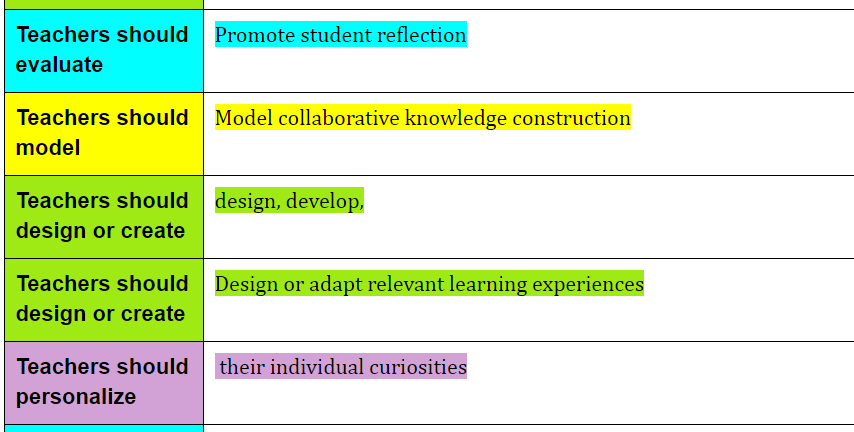
Then, while reading, highlighting can be done in several different colors. For example, a paper's thesis could be highlighted in one color and the supporting details could be highlighted in a different color. To try out the highlighter, I started with a Google Docs version of the ISTE NETS-T and highlighted of textual examples of different teacher expectations. Highlighting is easy - select a portion of text and click on a colored bar in the add-on pane while working in a Doc. The image at the top of my post is a screenshot of my highlighted text.

While this was incredibly easy to set up and do, I really wouldn't need an add-on for what I have described so far. You can use the text color function in the menu bar to highlight in different colors. The next steps that I describe are what really sold me on this interesting tool. After you are finished highlighting, you have a very colorful document, but the add-on doesn't stop there. Next you can export all the highlights in one of two ways.

Export by sequence allows the user to export all the highlights into a new Google Doc in the order that they were highlighted. This would be handy to look over the text for a pattern in ideas with the visual assist of color. For example, if you are looking at highlights of a research paper to see if there is evidence throughout the paper, you would be looking to see if the color representing evidence is present periodically throughout the exported highlights.

Export by color allows the user to export all the highlighted text into a new Google Doc organized by the category that the colors represent. This would be handy for grouping all the similar ideas or evidence from a reading together. After the highlights are grouped, the reader could look for patterns and big ideas.


I don't often ask my students to highlight text as they read, but this tool could change my mind about that. I do ask my students to check that the notes they take target the objectives listed in each textbook section. I could ask them to highlight each objective in a different color. Then, if they share the exported highlights with me, I could check to see how they are doing with that.

I recently participated in an inservice where the presenter led us through a rubric analysis and asked that we highlight various aspects of a rubric in different colors. What differentiates a 4 from a 3 or a 3 from a 2? This add-on would be great for doing that work as a class or in small groups and saving the exported highlights as a summary of the activity for future writing reference.

Another way to use this tool would be to designate four colors for each member of a four-person group. Each person could read a work looking for a different aspect of writing and then the highlights could be exported and shared.

This simple but useful tool was definitely the one thing I couldn't wait to share. I hope that you might find it useful too.